If you use a Mac for work, streaming, gaming, file sharing, or managing a home network, your IP address matters more often than you might expect. It helps identify your device on a local network, allows apps and services to communicate, and becomes especially useful when fixing connection problems or setting up printers, servers, or remote access.
Learning how to find IP address on Mac is simple once you know where to look. macOS gives you several ways to check it, from the visual System Settings menu to fast Terminal commands. The right method depends on whether you need your local IP address, public IP address, router address, or another network detail.
This guide walks through each reliable method in clear steps, explains what the numbers mean, and helps you avoid common confusion between different types of IP addresses.
What an IP Address Means on a Mac
An IP address is a unique number assigned to your Mac when it connects to a network. It works like a return address for internet and local network traffic, helping data reach the correct device instead of another laptop, phone, printer, or smart TV.
Your Mac can have more than one IP address depending on how it is connected. Wi-Fi, Ethernet, VPNs, virtual machines, and hotspot connections may each use separate network interfaces, so checking the correct one matters when troubleshooting or configuring devices.
Local IP Address Versus Public IP Address
A local IP address identifies your Mac inside your home, office, school, or private network. It often starts with numbers such as 192.168, 10, or 172.16. This is the address you usually need for printers, file sharing, AirDrop issues, or router settings.
A public IP address identifies your whole network on the internet. Your internet service provider assigns it to your router, not usually to your Mac directly. Websites, online services, and remote access tools see this public address when your network connects online.
Quick Facts Before You Check Your Mac IP
- Your local IP address is used inside your Wi-Fi or Ethernet network.
- Your public IP address is used by websites and outside services.
- A VPN can change the public IP address that websites see.
- Restarting your router may change your public IP address.
- Switching Wi-Fi networks gives your Mac a different local IP address.
- Terminal is fastest if you are comfortable typing commands.
- System Settings is easiest for most everyday users.
How to Find IP Address on Mac Using System Settings
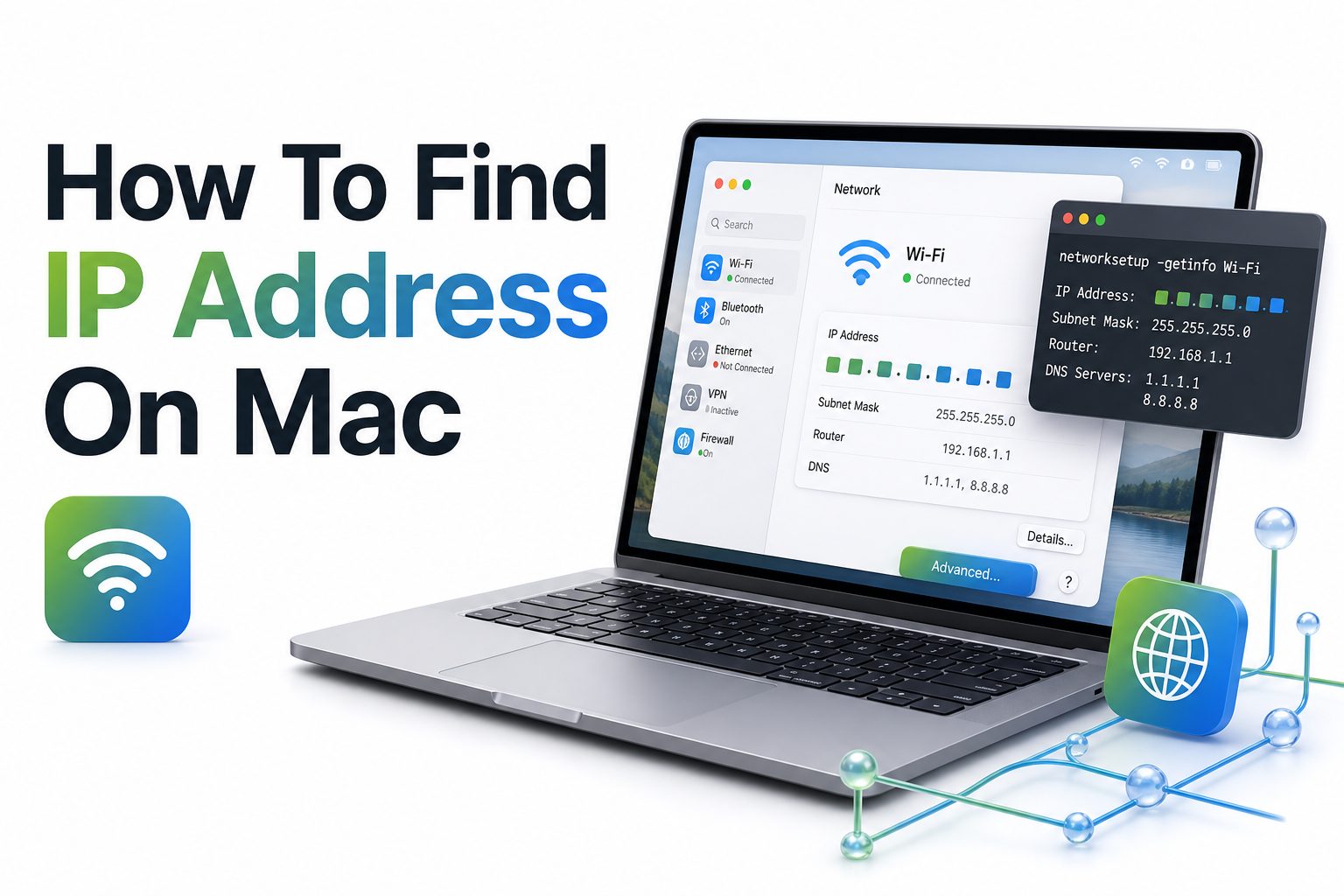
The simplest way to check your Mac’s IP address is through System Settings. Click the Apple menu, open System Settings, choose Network, then select your active connection. If you are connected through Wi-Fi, choose Wi-Fi and open Details beside the current network.
Inside the network details panel, look for the IP address listed under TCP/IP or the main connection information. This is usually your local IPv4 address. It is the address other devices on the same network use to reach your Mac.
Finding Your Mac IP Address on Wi-Fi
Most Mac users connect through Wi-Fi, so this method is often the most relevant. Open System Settings, select Wi-Fi, and confirm that your Mac is connected to the correct network. Then click Details beside the connected network name.
In the details window, your IP address appears with other network information such as router, subnet mask, and DNS. If you are following a setup guide for a printer, media server, or local app, this is usually the address you need.
How to Find Your Mac IP Address on Ethernet
If your Mac uses a wired Ethernet connection, the steps are nearly the same. Open System Settings, go to Network, and select Ethernet from the list. If you use a USB-C or Thunderbolt adapter, the connection may show the adapter name instead.
Once the Ethernet connection is selected, open the details panel and check the IP address field. Wired connections are often more stable than Wi-Fi, so this address is useful for servers, shared folders, network storage, and devices that need reliable access.
Comparison Table for Common IP Address Methods
Method: System Settings
Best For: Everyday users
Shows: Local IP address
Difficulty: Easy
Method: Wi-Fi Details
Best For: Wireless connections
Shows: Local Wi-Fi IP address
Difficulty: Easy
Method: Ethernet Details
Best For: Wired networks
Shows: Local Ethernet IP address
Difficulty: Easy
Method: Terminal
Best For: Fast technical checks
Shows: Local, router, and interface details
Difficulty: Moderate
Method: Web Search
Best For: Public internet address
Shows: Public IP address
Difficulty: Easy
How to Find IP Address on Mac Using Terminal
Terminal gives you a faster way to find network information if you prefer commands. Open Terminal from Applications, Utilities, or Spotlight search. For a Wi-Fi connection, type ipconfig getifaddr en0 and press Return. In many cases, your local IP address appears immediately.
Some Macs or network setups use a different interface, especially when adapters, Ethernet, or VPN connections are involved. If the command returns nothing, try ipconfig getifaddr en1 or use ifconfig to list all active network interfaces and their assigned addresses.
Useful Terminal Commands for IP Address Details
The command ipconfig getifaddr en0 is clean and direct when Wi-Fi uses the en0 interface. It returns only the IP address, which makes it handy when copying the value into a router setting, app configuration, or support ticket.
The ifconfig command shows more detail, including active interfaces, IPv4 addresses, IPv6 addresses, and network status. Look for inet followed by an address that is not 127.0.0.1. That loopback address points back to your own Mac and is not your network IP.
How to Find Your Public IP Address on Mac
Your public IP address is not usually shown in macOS network settings because it belongs to your router’s internet connection. The fastest way to check it is to search “what is my IP address” in a browser while connected to your normal network.
You can also use Terminal with a service such as curl ifconfig.me, depending on network access and service availability. If you are connected to a VPN, the public IP shown will usually belong to the VPN server rather than your home or office network.
Checklist for Choosing the Right IP Address
- Use your local IP address for printers, shared folders, and local servers.
- Use your public IP address for external access and ISP-related checks.
- Check the active network connection, not an unused adapter.
- Disconnect from VPN if you need your real public IP address.
- Copy the address carefully, including every period between numbers.
- Confirm whether the guide you are following asks for IPv4 or IPv6.
- Recheck the address after changing networks or restarting your router.
How to Find the Router IP Address on Mac
Your router IP address, also called the gateway address, is the address of the device that connects your local network to the internet. On a Mac, open System Settings, go to Network, select your active connection, then open Details and look under TCP/IP.
The router address often looks like 192.168.1.1 or 10.0.0.1. You can enter it into a browser to open your router’s admin page, assuming you have the correct login details. This is useful for Wi-Fi settings, DHCP leases, port forwarding, and network diagnostics.
Using Terminal to Find the Router Address
Terminal can also show the router address quickly. Open Terminal and type netstat -nr | grep default, then press Return. The gateway address appears beside the default route and points to the router your Mac uses for internet traffic.
Another option is route -n get default, which returns detailed route information. Look for the gateway line. This method is helpful when System Settings is slow, unavailable, or when you are working remotely with someone who prefers command-line instructions.
How to Find IPv6 Address on Mac
Many networks now assign IPv6 addresses along with IPv4 addresses. To check IPv6 in System Settings, open Network, select the active connection, open Details, and look under TCP/IP. If IPv6 is active, macOS may show one or more longer addresses.
IPv6 addresses contain letters and numbers separated by colons, which makes them look very different from IPv4 addresses. You may not need IPv6 for basic home troubleshooting, but it matters for some business networks, modern routers, and internet services.
IPv4 and IPv6 Differences at a Glance
IPv4 Example: 192.168.1.24
IPv6 Example: 2601:abcd:1234:5678::1
Format: IPv4 uses numbers and periods, while IPv6 uses hexadecimal characters and colons.
Common Use: IPv4 remains common for local networks, while IPv6 is increasingly used by internet providers.
Troubleshooting Note: Most printer, router, and home network guides still ask for IPv4.
Why Your Mac IP Address Might Change
Most networks use DHCP, which automatically assigns IP addresses to devices. That means your Mac may receive a different local IP address after reconnecting, restarting, changing networks, or when the router refreshes its address lease.
This behavior is normal, but it can cause problems if another device expects your Mac to stay at the same address. File sharing, local development servers, remote desktop tools, and media apps may need a reserved or static IP for consistency.
When to Use a Static IP Address
A static IP address keeps your Mac reachable at the same local address. This can help if you run a local server, share files regularly, connect from another device, or need predictable access for development and testing tools.
For most people, it is better to create a DHCP reservation in the router rather than manually setting a static IP on the Mac. A router reservation reduces address conflicts and keeps network management in one place.
Tips for Avoiding IP Address Problems
- Let your router assign addresses automatically unless you have a clear reason.
- Use DHCP reservations for devices that need a permanent local address.
- Avoid assigning an address already used by another device.
- Restart Wi-Fi after changing network settings.
- Write down your router address before editing router settings.
- Keep VPN status in mind when checking your public IP.
- Use [Internal Link: Mac Network Troubleshooting] for deeper connection fixes.
How to Copy and Share Your IP Address Safely
You can share your local IP address with someone helping you troubleshoot your home or office network. A local address such as 192.168.1.50 does not identify your internet connection to the wider web by itself.
Be more careful with your public IP address. It is not a password, but it can reveal approximate location and internet provider details. Share it only with trusted support teams, hosting providers, or services where it is genuinely needed.
Common Mistakes When Checking a Mac IP Address
One common mistake is copying the router address instead of the Mac’s address. The router field points to your gateway, while the IP address field identifies your Mac. They may look similar, but they serve different purposes.
Another mistake is checking the wrong network interface. If Wi-Fi and Ethernet are both enabled, your Mac may use one as the active connection. Always check the connection marked connected, especially when troubleshooting speed, sharing, or access issues.
Practical Uses for Your Mac IP Address
Your Mac’s IP address is useful when setting up network printers, sharing folders, hosting a local website, connecting through SSH, or testing apps across devices. Developers often use it to preview a site from a phone on the same Wi-Fi network.
It also helps with support conversations. Instead of saying the Mac “will not connect,” you can confirm whether it has a valid IP address, whether it sees the router, and whether the issue is local network access or wider internet connectivity.
IP Address Use Cases by Scenario
Scenario: Printer setup
Address Needed: Local Mac or printer IP
Why It Matters: Helps devices find each other on the same network
Scenario: Remote access
Address Needed: Public IP or reserved local IP
Why It Matters: Points outside connections to the right network or device
Scenario: Local web testing
Address Needed: Local Mac IP
Why It Matters: Lets phones and tablets open a site hosted on your Mac
Scenario: Router setup
Address Needed: Router IP
Why It Matters: Opens the router admin panel
Scenario: VPN testing
Address Needed: Public IP
Why It Matters: Confirms whether traffic is routed through the VPN
How to Find IP Address on Older macOS Versions
Older macOS versions use System Preferences instead of System Settings. Click the Apple menu, open System Preferences, choose Network, then select Wi-Fi or Ethernet. The IP address usually appears directly in the status area or under the Advanced TCP/IP tab.
The labels may vary slightly across macOS releases, but the logic remains the same. Select the active connection first, then look for TCP/IP details. If the visual layout differs, Terminal commands can provide the same information without relying on menu changes.
Checking IP Address While Using a VPN
A VPN can affect which IP address you see, especially your public IP address. When connected, websites usually see the VPN server address instead of your normal internet connection. This is expected and often the main reason people use a VPN.
Your local IP address may remain the same while the VPN is active, but some VPNs create additional network interfaces. If you are troubleshooting local printers or file sharing, temporarily disconnecting the VPN can help confirm whether it is blocking local traffic.
How to Tell If Your Mac Has a Valid IP Address
A valid local IP address usually matches the pattern used by your router, such as 192.168.1.x or 10.0.0.x. If your Mac shows an address beginning with 169.254, it may not have received a proper address from the router.
A 169.254 address often means DHCP failed or the Mac could not communicate with the router correctly. Restarting Wi-Fi, renewing the DHCP lease, rebooting the router, or checking the network password can often resolve this issue.
Useful Troubleshooting Steps
- Turn Wi-Fi off and back on.
- Restart your Mac if the address does not refresh.
- Renew the DHCP lease in network settings.
- Restart the router if several devices are affected.
- Forget and rejoin the Wi-Fi network.
- Disable VPN temporarily during local network checks.
- Review [Internal Link: Home Wi-Fi Setup Guide] for related setup help.
Renewing DHCP Lease on Mac
Renewing the DHCP lease asks your router to assign network details again. Open System Settings, go to Network, select your active connection, open Details, then choose TCP/IP. Click Renew DHCP Lease if the option is available.
This can fix cases where your Mac has an expired, incorrect, or conflicting address. It is a low-risk step because it does not erase Wi-Fi passwords or personal files. After renewing, check whether the IP address changes to a valid local network address.
Finding IP Address for Another Device from Your Mac
Sometimes you may need the IP address of a printer, phone, smart TV, or another computer. Your router’s admin page is usually the best place to check connected devices because it shows names, addresses, and connection types in one list.
You can also use network scanning tools, but use them responsibly and only on networks you own or manage. For simple home use, the router device list is clearer and safer than installing extra tools just to identify one connected device.
Security Notes About IP Addresses
An IP address is not private in the same way as a password, but it still deserves care. Your public IP can reveal general location, network provider, and connection type. Local IP addresses are less sensitive but still useful in network mapping.
Avoid posting your public IP address on public forums unless required and safe. When working with support, share only the address they ask for and clarify whether they need your local IP, public IP, router address, or device-specific network information.
Best Practices for Mac Network Details
Keep network details organized if you regularly manage devices. Save router addresses, reserved IPs, printer addresses, and server addresses in a secure note or password manager. This makes future troubleshooting faster and reduces guessing during urgent connection problems.
For business environments, follow your IT team’s process before changing IP settings. Manual changes can break access to internal systems, printers, security tools, or VPN resources. When in doubt, capture the current settings before editing anything.
Conclusion
Finding your Mac’s IP address is straightforward once you know which address you need. System Settings is the easiest option for most users, while Terminal is faster for technical checks and remote instructions. The key is knowing the difference between local, public, router, IPv4, and IPv6 addresses.
If you are setting up a printer, sharing files, testing a local website, or fixing Wi-Fi problems, start with your local network address. If you are checking what websites or services see, look for your public address instead. With these methods, you can confidently handle how to find ip address on mac without guessing through menus or copying the wrong number.
FAQ
What is the fastest way to find my Mac IP address?
Open System Settings, select Network, choose your active Wi-Fi or Ethernet connection, and check the IP address field. For Terminal users, ipconfig getifaddr en0 is often the quickest command for Wi-Fi.
Is my Mac IP address the same as my public IP?
No. Your Mac’s local IP identifies it inside your network, while your public IP identifies your internet connection online. Your router usually holds the public IP, and your Mac uses a local address behind it.
Why does my Mac IP address keep changing?
Your router likely uses DHCP, which automatically assigns addresses and may change them over time. To keep one address, create a DHCP reservation in your router settings or configure a static local IP carefully.
Can I find my Mac IP address without internet?
Yes. You can find your local IP address without internet access as long as your Mac is connected to a local network. System Settings and Terminal can both show local network details without loading websites.
Which IP address do I need for file sharing?
Use your Mac’s local IP address for file sharing on the same network. It is usually shown under your active Wi-Fi or Ethernet connection and commonly starts with 192.168 or 10.
0 Comments