If you have ever checked your Wi-Fi settings, set up a router, connected a printer, or looked at network details on a laptop, you may have seen a string labeled “MAC address.” It looks technical at first glance, usually written as pairs of letters and numbers separated by colons or hyphens. Many people see it once, ignore it, and only return to it when troubleshooting a connection problem.
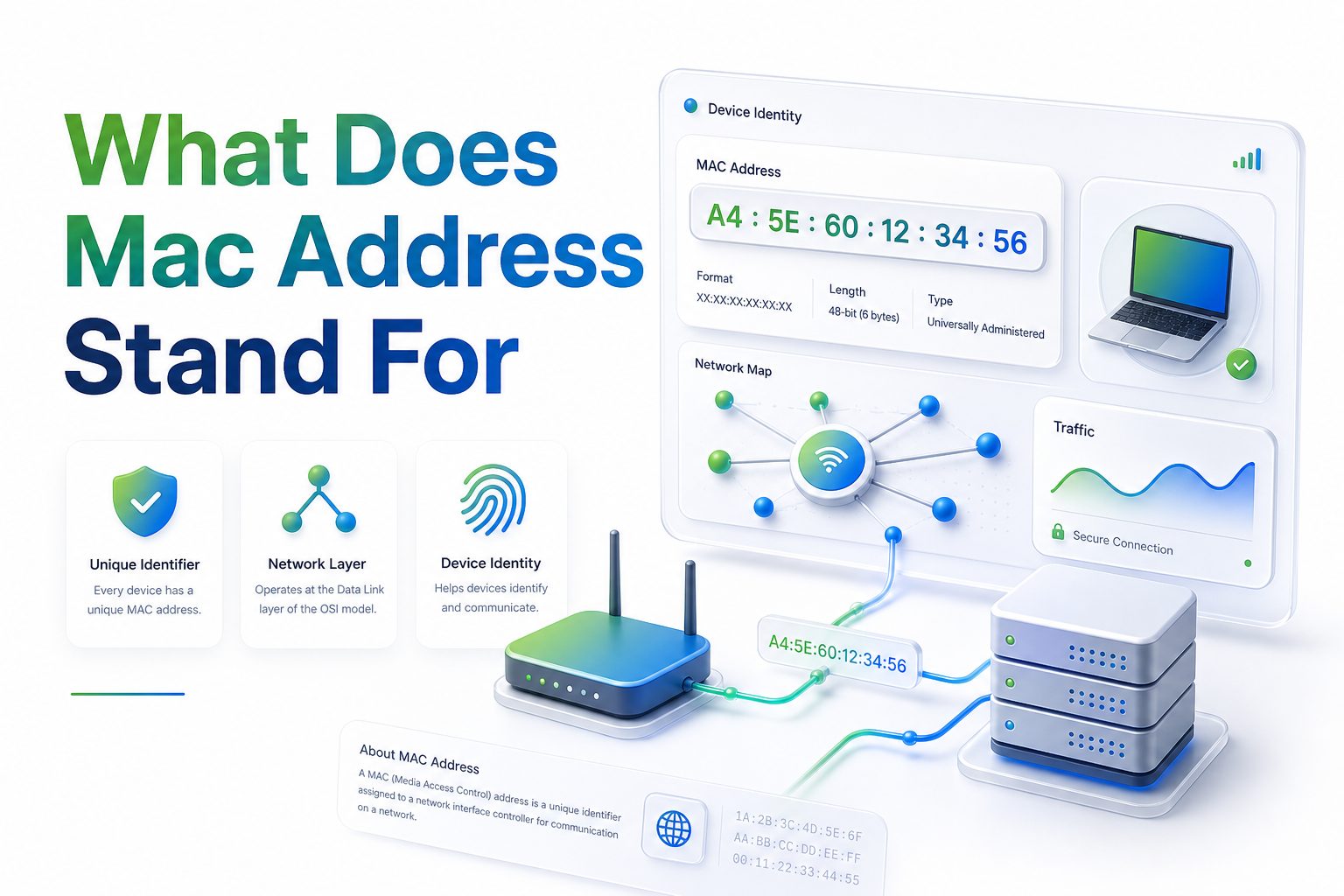
So, what does mac address stand for, and why does it matter? MAC stands for Media Access Control. A MAC address is a unique hardware identifier assigned to a network interface, such as the Wi-Fi chip or Ethernet port inside your device. It helps devices communicate correctly on a local network. While IP addresses often get more attention, MAC addresses quietly handle essential work behind the scenes every time devices connect, share data, or identify one another on the same network.
What MAC Address Means
MAC address stands for Media Access Control address. It is a unique identifier attached to a network interface controller, often called a NIC. That interface may be built into a laptop, smartphone, printer, router, smart TV, or any device that connects to a wired or wireless network.
The “media” part refers to the network medium, such as Ethernet or Wi-Fi. “Access control” relates to how devices access and communicate across that medium. In simple terms, the MAC address helps network equipment recognize which physical device is sending or receiving data locally.
How a MAC Address Looks
A standard MAC address is 48 bits long and usually appears as six pairs of hexadecimal characters. You might see a format like 3C:22:FB:91:A7:10 or 3C-22-FB-91-A7-10. Each pair represents eight bits, which is why the full address has six groups.
Hexadecimal uses numbers from 0 to 9 and letters from A to F. That allows compact representation of binary data. Although the format may look random, part of the address can identify the manufacturer, while the remaining portion helps make the device interface unique.
Important MAC Address Facts
- MAC stands for Media Access Control.
- A MAC address identifies a network interface, not always the whole device.
- Most MAC addresses are 48 bits long.
- Wi-Fi and Ethernet adapters usually have different MAC addresses.
- Routers use MAC addresses for local network communication.
- IP addresses can change often, but burned-in MAC addresses are usually fixed.
- Modern devices may use randomized MAC addresses for better privacy.
Why Devices Need MAC Addresses
Networks need a reliable way to move data to the right hardware. On a local network, IP addresses help with logical routing, but MAC addresses handle device-level delivery. When your laptop sends data to your router, the router uses MAC address information to direct traffic properly.
Without MAC addresses, devices on the same local network would struggle to identify one another at the hardware level. The system works like a local delivery label, helping network equipment pass frames to the correct interface instead of sending everything blindly.
MAC Address Versus IP Address
A MAC address and an IP address both identify networked devices, but they serve different roles. A MAC address is tied to the network interface hardware. An IP address is assigned by network software and helps route data between networks, including across the internet.
Think of the MAC address as a device’s local hardware label and the IP address as its network location. If you move your laptop from home Wi-Fi to office Wi-Fi, its IP address changes. Its built-in hardware MAC address generally stays the same.
MAC Address and IP Address Comparison
Feature | MAC Address | IP Address
Purpose | Identifies network hardware | Identifies network location
Scope | Local network communication | Local and internet routing
Assigned by | Manufacturer or system software | Router, ISP, or administrator
Common format | Hexadecimal pairs | Numeric address format
Changes often | Usually no | Often yes
Example use | Router finds a device locally | Website sends data back to you
How MAC Addresses Work on Local Networks
When a device sends data on a local network, it packages that data into frames. These frames include source and destination MAC addresses. Switches and routers read those addresses to decide where the data should go next inside the local network.
This process happens constantly and quickly. You do not see it while browsing, streaming, printing, or transferring files. Still, MAC addressing is one of the reasons your router can tell your phone, laptop, and smart speaker apart even when many devices are connected.
The Role of ARP
ARP stands for Address Resolution Protocol. It helps match IP addresses to MAC addresses on local IPv4 networks. When your computer knows an IP address but needs the matching MAC address, it can send an ARP request asking which device owns that IP.
The device with that IP replies with its MAC address. Your computer then stores that information temporarily in an ARP cache. This saves time because the device does not need to ask the same question every time it sends local traffic.
Permanent Address Versus Current Network Identity
Many network adapters have a burned-in address assigned by the manufacturer. This is often called the physical address, hardware address, or factory MAC address. It is intended to be globally unique, although software can sometimes override what the network sees.
Modern operating systems may also use private or randomized MAC addresses, especially on Wi-Fi. This means the address shown to a network may differ from the hardware’s original address. The goal is to reduce tracking when devices scan for or join networks.
Where MAC Addresses Are Used
MAC addresses are used in home networks, business networks, public Wi-Fi systems, school networks, and data centers. Any environment with Ethernet or Wi-Fi relies on them for local communication. They are especially important for switches, access points, and routers.
They also appear in device management tools. Network administrators may use MAC addresses to identify devices, assign reserved IP addresses, filter access, or investigate connection problems. For a deeper networking primer, see [Internal Link: Network Basics for Beginners].
Common Places You See a MAC Address
You may see a MAC address inside your phone’s Wi-Fi settings, your computer’s network adapter details, or your router’s connected device list. It may also appear on product labels for printers, smart TVs, security cameras, and network appliances.
Internet providers and IT departments may ask for a MAC address when activating service or registering a device. In those cases, they usually need the address for the specific interface being used, such as Ethernet rather than Wi-Fi.
Quick Checklist for Finding the Right MAC Address
- Check whether the device is using Wi-Fi or Ethernet.
- Look for labels such as MAC address, physical address, hardware address, or Wi-Fi address.
- Confirm the address has six pairs of hexadecimal characters.
- Avoid copying the Bluetooth address unless specifically requested.
- Use the current private Wi-Fi address if the network requires it.
- Check router admin pages for connected device details when the device itself is hard to access.
Types of MAC Addresses
There are several ways to classify MAC addresses. The most common distinction is between universally administered addresses and locally administered addresses. A universally administered address is assigned by the manufacturer. A locally administered address is set by software, an operating system, or an administrator.
MAC addresses can also be unicast, multicast, or broadcast. A unicast address points to one network interface. A multicast address targets a group. A broadcast address reaches all devices on a local network segment, using FF:FF:FF:FF:FF:FF.
Universally Administered Addresses
A universally administered address is created using a manufacturer identifier and a device-specific value. The first part, known as the Organizationally Unique Identifier, points to the vendor that registered the address block. This helps identify who likely produced the network interface.
The remaining part is assigned by the manufacturer to make the interface distinct. This does not always reveal the exact device model, owner, or location. It only gives clues about the network hardware vendor or chipset provider.
Locally Administered Addresses
A locally administered address is not permanently assigned by the manufacturer. It can be created by an operating system, administrator, virtual machine platform, or privacy feature. These addresses are common in virtual networks, containers, enterprise setups, and modern mobile devices.
Randomized Wi-Fi addresses are a common example. Your phone may show one MAC address at home and another at a coffee shop. That limits the ability of networks to track the same hardware across different locations.
How MAC Address Randomization Affects Privacy
MAC address randomization helps reduce passive tracking. In the past, a device could broadcast or use the same Wi-Fi MAC address everywhere, making it easier for shops, airports, or public networks to recognize repeat visitors without direct consent.
With randomization, the device presents a different address in many situations. This does not make someone anonymous online, but it does reduce one type of local tracking. Websites, apps, cookies, accounts, and IP addresses can still reveal activity in other ways.
Why Some Networks Disable Randomization
Some business, school, hotel, or home networks use MAC addresses to recognize approved devices. Randomization can interfere with those controls because the network sees a new device identity. That may cause repeated login prompts or blocked access.
For trusted networks, users may need to turn off private address features or register the randomized address shown for that network. The better choice depends on the network’s policy, privacy needs, and how device access is managed.
Privacy Tips for MAC Addresses
- Keep private Wi-Fi address features enabled on public networks.
- Use trusted networks only when disabling MAC randomization.
- Avoid sharing your MAC address publicly unless there is a clear need.
- Remember that a MAC address does not replace strong passwords or encryption.
- Review saved Wi-Fi networks occasionally and remove ones you no longer use.
- Treat unknown public networks cautiously, even when privacy features are active.
MAC Addresses in Home Networking
In home networks, MAC addresses often appear in the router’s admin dashboard. You may see device names, IP addresses, connection types, and MAC addresses listed together. This can help identify which phone, laptop, camera, or console is connected.
Home users commonly rely on MAC addresses for DHCP reservations. A DHCP reservation tells the router to give a specific device the same IP address every time it connects. This is useful for printers, media servers, gaming consoles, and smart home hubs.
MAC Filtering at Home
MAC filtering allows or blocks devices based on their MAC addresses. Some routers offer allowlists, where only approved addresses can connect. Others offer blocklists, where selected devices are denied access. It sounds strong, but it has limits.
MAC filtering should not be your main security measure. MAC addresses can be spoofed, and managing lists becomes tedious as devices change. Strong Wi-Fi encryption, a good password, router updates, and guest networks provide better protection for most homes.
Using MAC Addresses for Troubleshooting
MAC addresses are helpful when device names are unclear. A router may show “Unknown Device” or a vague manufacturer name. Comparing the MAC address with the address shown on your phone, laptop, or printer can confirm which device is which.
They also help when resolving IP conflicts, printer connection issues, and device reservation problems. If two similar devices are connected, the MAC address gives a more reliable identifier than a friendly name that users can easily change.
Practical Troubleshooting Example
Suppose your wireless printer keeps changing IP addresses, and your computer can no longer find it. You can open the router settings, locate the printer’s MAC address, and create a DHCP reservation. The printer then receives the same IP address each time.
This small change often makes printing more reliable. It also helps when scanning, sharing files, or connecting to devices that need a stable local address. For related setup advice, see [Internal Link: Home Router Configuration Tips].
MAC Address Security Limits
A MAC address is useful for identification, but it is not a secure secret. Anyone with access to the local network may be able to observe MAC addresses in normal traffic. Attackers can also spoof a MAC address with basic tools.
That means MAC-based access control should be treated as light management, not serious authentication. It may reduce casual access, but it cannot replace WPA3, strong passwords, certificate-based authentication, network segmentation, or proper monitoring in sensitive environments.
Business Network Considerations
Businesses often use MAC addresses in asset inventories, endpoint management, and network access systems. They can help track hardware, apply policies, and map devices to switch ports. In larger networks, that visibility can support faster troubleshooting and compliance work.
However, organizations should account for private addressing and virtual adapters. A single physical device may show multiple MAC addresses over time. Policies that rely too heavily on static MAC values can break when devices update, move, or enable privacy settings.
Security Dos and Don’ts
Do:
-
- Use MAC addresses for inventory and local device identification.
- Pair MAC-based controls with stronger authentication.
- Keep router and access point firmware updated.
- Separate guest devices from personal or business devices.
- Monitor unknown devices on sensitive networks.
Don’t:
- Treat MAC filtering as full security.
- Post MAC addresses publicly without reason.
- Assume a vendor prefix always proves device ownership.
- Ignore randomized addresses in modern operating systems.
- Use MAC addresses as passwords or secret tokens.
How to Find a MAC Address on Common Devices
On Windows, you can find a MAC address through Settings, Control Panel, or the Command Prompt. The command ipconfig /all shows physical addresses for network adapters. Make sure you choose the active adapter, such as Wi-Fi or Ethernet.
On macOS, open System Settings, go to Network, select the connection, and review hardware details. You can also use Terminal commands such as ifconfig. The exact path may vary by macOS version, but the address usually appears near Wi-Fi or Ethernet settings.
Finding It on Phones and Routers
On iPhone, the Wi-Fi address appears under the details for a specific network. iOS may show a private address for each network. On Android, the location varies by manufacturer, but it is usually under About Phone, Network, or Wi-Fi details.
On routers, the MAC address list is usually found under connected devices, clients, attached devices, LAN status, or DHCP clients. Router brands use different wording, but the list typically pairs each device with an IP address and connection type.
How to Read Vendor Information
The first three octets of many MAC addresses identify the vendor through an Organizationally Unique Identifier. For example, a lookup may show that a network adapter block belongs to a known hardware company. This can help identify unknown devices on your network.
Vendor lookup is not perfect. Devices may use third-party chipsets, virtual adapters, or randomized addresses. A phone might display a chipset vendor rather than the phone brand. Treat lookup results as clues, not final proof.
Why One Device Can Have Several MAC Addresses
A device can have multiple network interfaces. A laptop may have one MAC address for Wi-Fi, another for Ethernet, another for Bluetooth, and additional ones for virtual adapters. Each interface needs its own identifier because each connects differently.
Docking stations, USB Ethernet adapters, VPN software, virtual machines, and container platforms can add even more addresses. This is normal. When someone asks for your MAC address, confirm which connection or adapter they need before sending it.
Common MAC Address Mistakes
One common mistake is copying the wrong address. Bluetooth, Wi-Fi, Ethernet, and private Wi-Fi addresses can all appear in settings. If a network administrator needs your wired adapter address, sending the wireless address will not solve the access issue.
Another mistake is assuming a MAC address identifies a person. It identifies a network interface. Ownership and user identity require additional context, such as account records, router logs, device enrollment data, or physical access information.
Quick Reference for Common Terms
Term | Meaning
MAC | Media Access Control
NIC | Network interface controller
OUI | Vendor identifier within many MAC addresses
ARP | Protocol that maps IPv4 addresses to MAC addresses locally
DHCP reservation | Router setting that gives a device the same IP address
Spoofing | Changing the MAC address shown to a network
Randomization | Using a generated MAC address for privacy
When You Should Care About a MAC Address
Most people do not need to think about MAC addresses every day. They become relevant when setting up routers, fixing printer problems, managing smart home devices, registering school or office devices, or checking unfamiliar connections on a network.
They are also useful when you want more control over your local network. Knowing which device is which can help you rename clients, remove old devices, create reservations, and spot anything that does not belong on your Wi-Fi.
When You Can Ignore It
You can usually ignore MAC addresses during normal browsing, streaming, messaging, and app use. Your device and router handle the details automatically. If your internet works and you are not managing device access, there is often no reason to check it.
You should also avoid changing MAC settings casually. Spoofing or disabling privacy features can cause connection issues, duplicate entries, or policy conflicts. Change these settings only when you have a practical reason and know which network is affected.
Practical Tips for Everyday Users
- Label your router’s connected devices when you recognize them.
- Use DHCP reservations for printers, servers, and smart home hubs.
- Keep private Wi-Fi addresses enabled on public networks.
- Turn off private addressing only for trusted networks that require registration.
- Use guest Wi-Fi for visitors and smart home devices.
- Review your router’s device list after installing new equipment.
- Save important network notes in a secure place, not a public document.
Conclusion
A MAC address is one of those network details that stays mostly invisible until something needs setup, repair, or closer control. It identifies a network interface on a local network and helps routers, switches, phones, computers, printers, and smart devices send data to the right place. It is different from an IP address because it works closer to the hardware layer, while IP addresses handle broader network routing.
Knowing the answer to what does mac address stand for gives you a clearer view of how devices communicate and why router dashboards list hardware addresses beside device names. It also helps you avoid common mistakes, such as sending the wrong adapter address or relying on MAC filtering as your only security measure. For everyday users, the key is simple: MAC addresses are useful for local identification, troubleshooting, and device management, but they are not private passwords or foolproof security tools.
FAQ
What does MAC mean in a MAC address?
MAC means Media Access Control. It refers to the system used by network hardware to identify devices and control access to a local network medium, such as Wi-Fi or Ethernet.
Is a MAC address the same as an IP address?
No. A MAC address identifies a network interface on a local network, while an IP address identifies a device’s network location. IP addresses often change, but hardware MAC addresses usually remain stable.
Can a MAC address be changed?
Yes, many systems allow MAC address spoofing or randomization. The original hardware address usually remains built into the device, but software can present a different address to a network.
Is it safe to share a MAC address?
Sharing a MAC address is usually low risk, but it should not be posted publicly without reason. It can reveal device or vendor clues and may be used for local network tracking.
Why does my phone show different MAC addresses?
Modern phones often use private or randomized MAC addresses for Wi-Fi networks. This helps reduce tracking across locations. Each saved network may see a different address from the same phone.
0 Comments